
From New Outlook to Legacy Outlook on Mac
Klasor works with Legacy Outlook. How to switch back to it, what happens to your accounts, and what the end of support means.
6 min read · updated Nov 8, 2026
How to switch back to Legacy Outlook
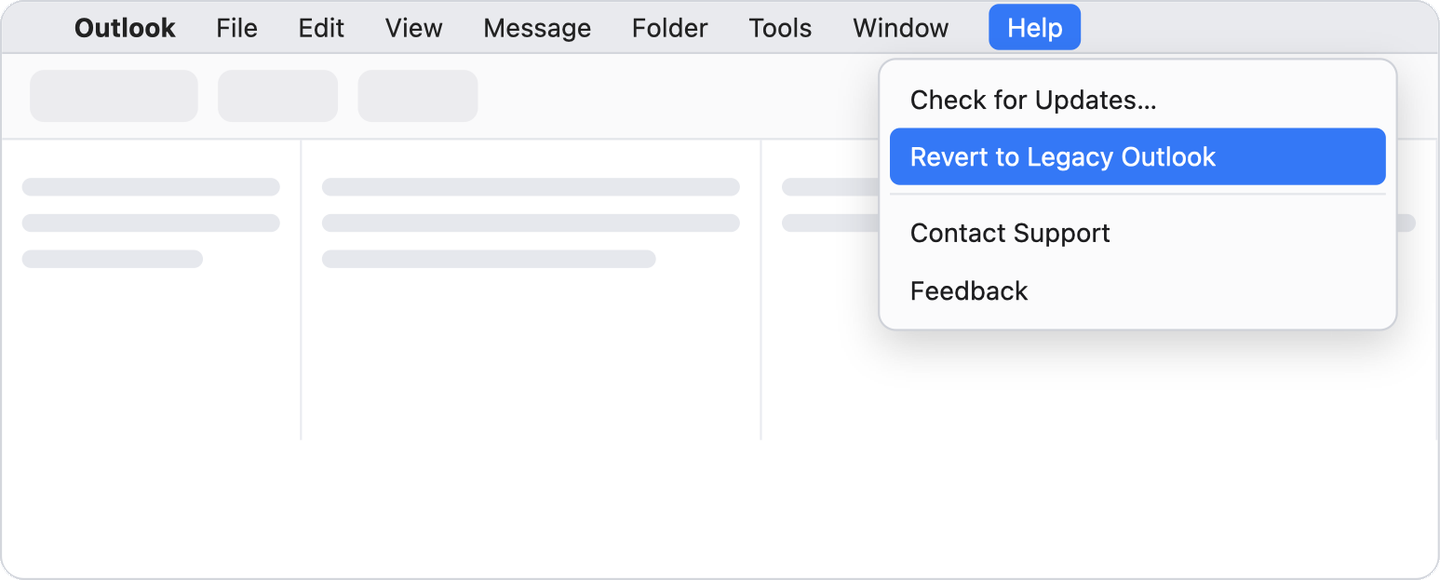
Microsoft’s official method: from New Outlook, open the Help menu and choose Revert to Legacy Outlook.
- 1
The Help menu
In your Mac’s menu bar, while Outlook is the active app.
- 2
Revert to Legacy Outlook
Switches back to the classic version. Before it switches, Outlook may ask for feedback and offer a reminder about future features.
- 3
Check for Updates
If you don’t see “Revert to Legacy Outlook,” update Outlook first (Help → Check for Updates) and look again.
The switch in the Outlook window
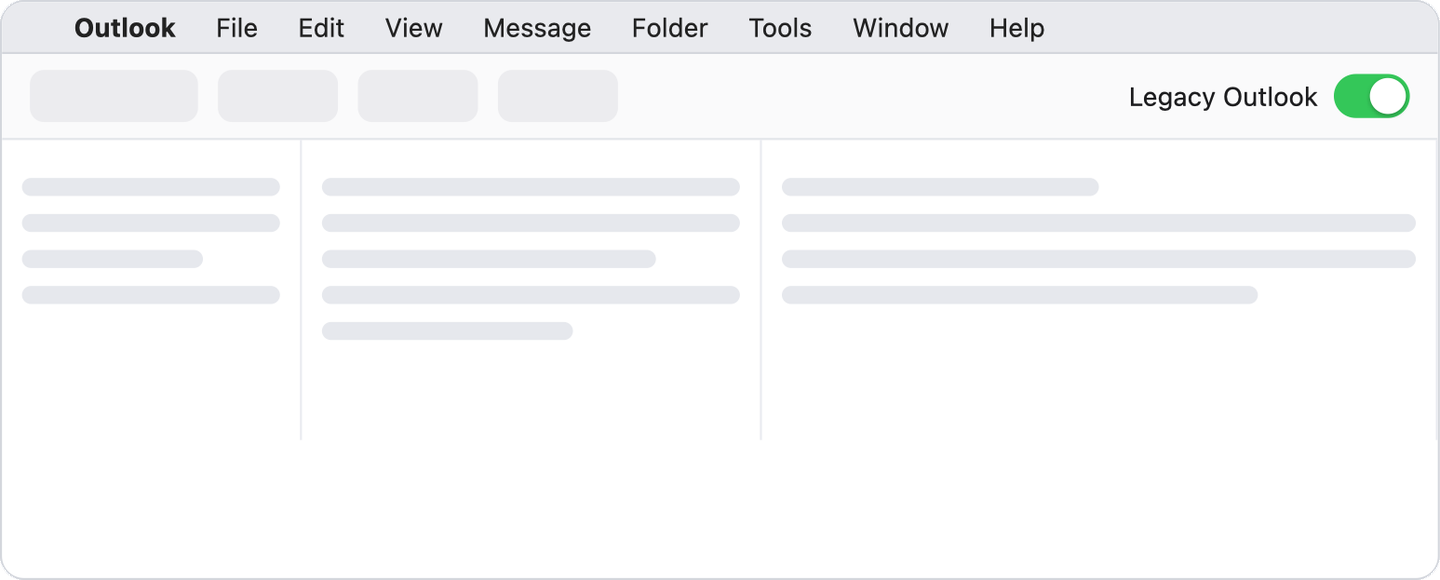
In the classic version, the Legacy Outlook switch in the corner of the window must be on. Turning it off switches to the new Outlook.
- 1
Legacy Outlook
On = the classic version. Off = the new Outlook (where Klasor can’t work).
What happens to your accounts
- Accounts don’t transfer on their own. An account added in the new Outlook doesn’t automatically appear in Legacy, and vice versa. You may need to add it again.
- Importing .olm files works only in Legacy Outlook.
- Which accounts Klasor can see depends on how they were added: Which accounts work, and how to add them.
- “On My Computer” folders (local): make an .olm export before any switch, so you don’t lose access to them. (An .olm is Outlook for Mac’s own archive file: a whole mailbox or folder in a single file, which only Outlook for Mac can open. It is not the same as an .eml, which is a single message that many apps can open and which is what Klasor exports. More on .olm.)
If the option is missing
- Update Outlook: Help → Check for Updates (Microsoft’s recommendation for a missing switch).
- Work account: your organization’s administrator can block switching between versions.
- Office 2024 for Mac includes only the new Outlook; the Legacy switch isn’t available.
Make a copy before any change
- .eml export with KlasorAn open backup, with verification. Guide.
- .olm export from LegacyA second copy, in Outlook’s format. Guide.