How it works
Ready in three steps
Install
One installer, one permission for Outlook. The free trial, when you choose it on first launch: 7 days or 1,000 messages.
Choose
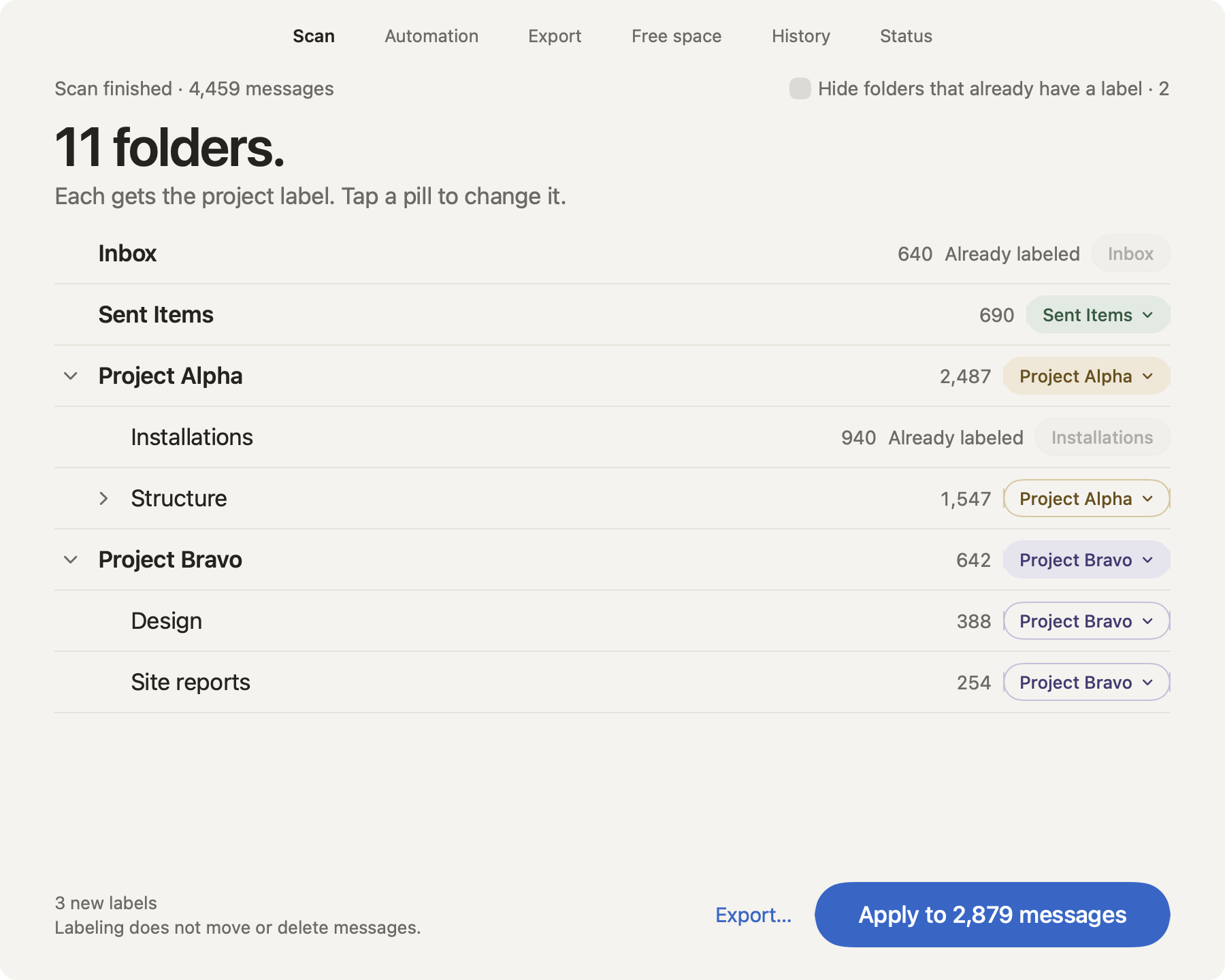
Scan your mailbox: every folder gets a label named after it, and you can change any of them before you apply.
Let it run
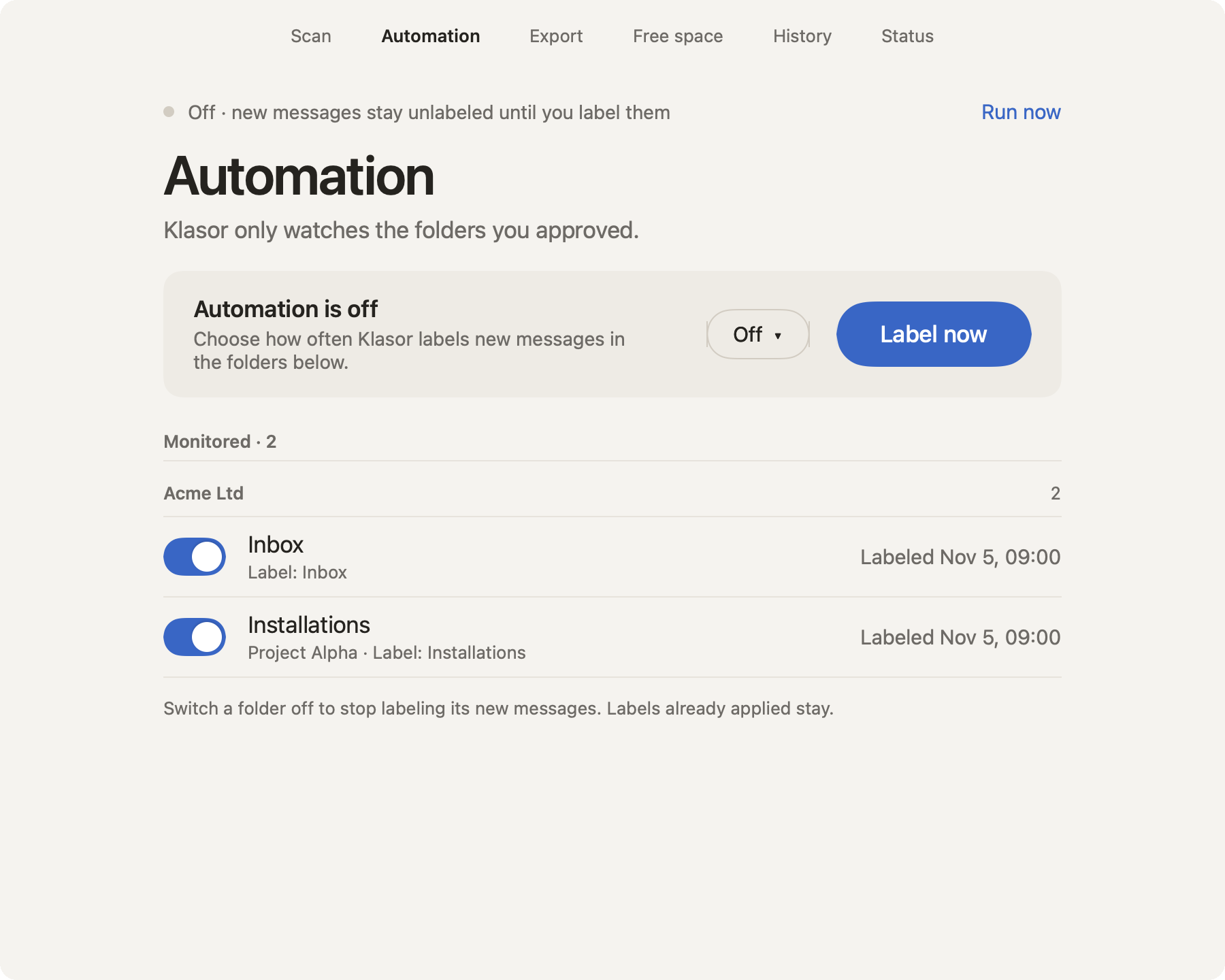
Turn on Automation and new messages are labeled by themselves. Export any time, with double verification.
The app
A calm interface, with status always in view
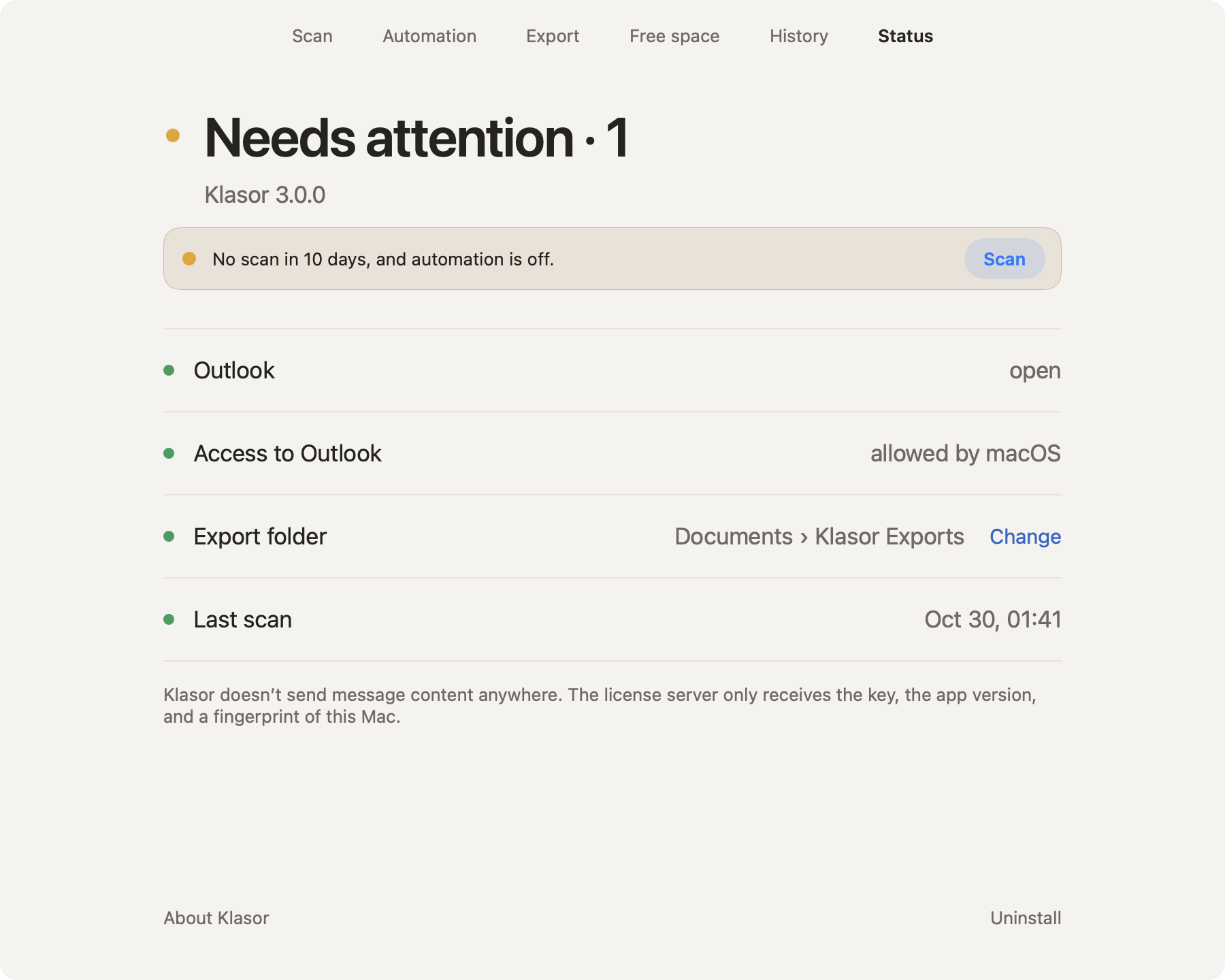
Six screens, always one click away: Scan, Automation, Export, Free space, History and Status. Status tells you at a glance whether everything is fine, and what to do when it isn’t. It follows your Mac’s light or dark appearance.