
Automation: labeling new messages by itself
After you apply labels once, Klasor can label the new messages in those folders on a schedule, in the background, while Outlook is open.
4 min read · updated Nov 8, 2026
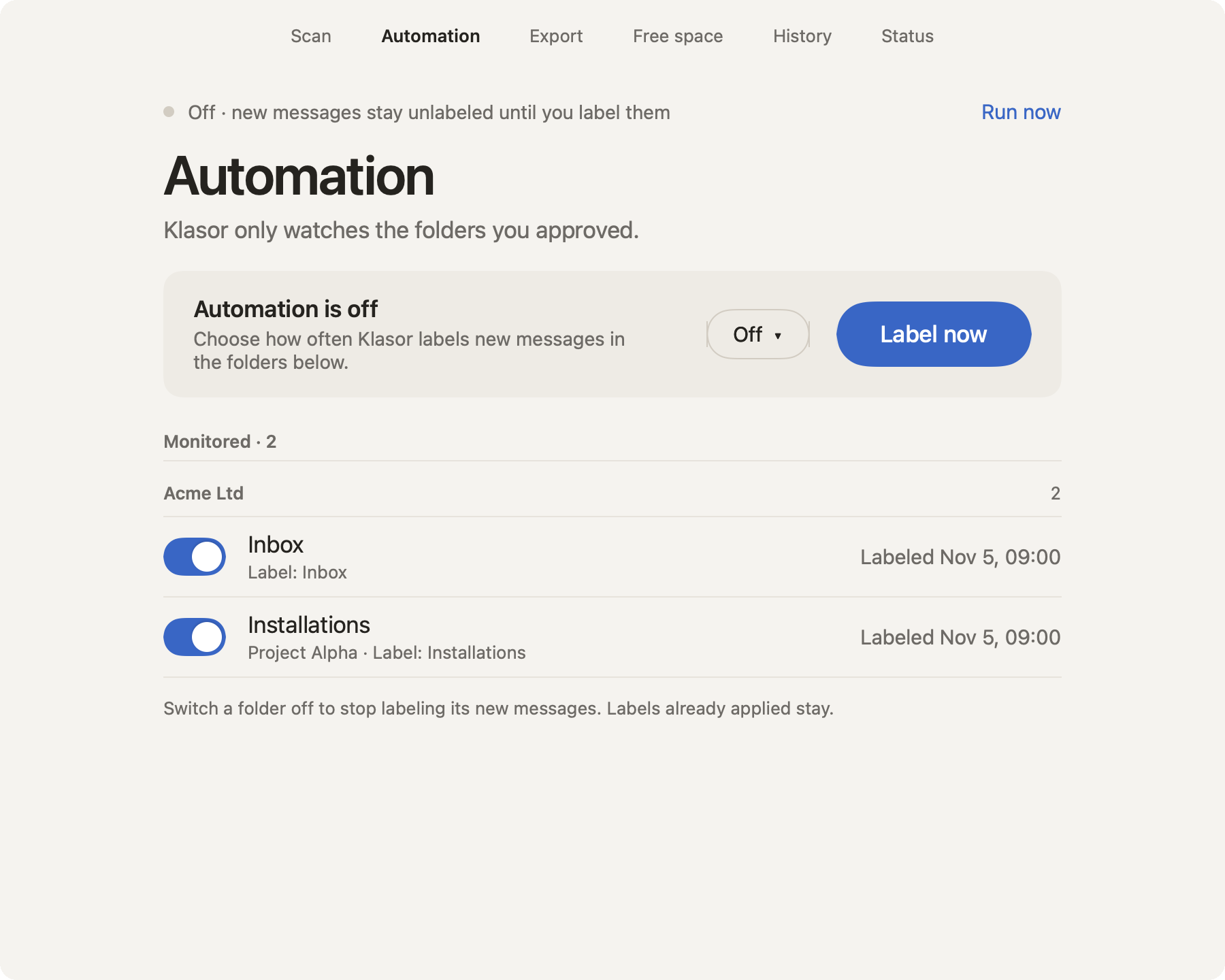
- 1
The state
Off by default. When it’s on, it shows the last and the next run.
- 2
Run now
Runs a labeling pass right away, without waiting for the schedule.
- 3
The schedule
Klasor runs in the background, with no windows. It works only while Outlook is open and never starts Outlook.
- 4
How often
Off · every 15 minutes · every hour · every 3 hours · every Friday at 11:00. A message moved into a folder gets its label within the interval you chose at most.
- 5
Label now
The same as Run now, from the card.
- 6
Monitored folders
Klasor watches only the folders you applied labels to. Switch a folder off and its new messages stop being labeled; labels already applied stay.
- 7
Nothing by surprise
A new folder is not picked up on its own: run Scan and apply a label to add it.
What a run does
- It labels only the new messages in the monitored folders, with the folder’s label.
- Each run is written to History (for example “214 new messages labeled automatically”).
- If your Mac was off, it catches up on what it missed (since the last successful run, with a 1-day margin, at least 7 and at most 90 days).
Safety
- Before each run, Klasor checks that the folder in the configuration is still the same. If Outlook gave it a new identifier, Klasor finds it again by name and fixes the setup. If the folder is really gone (moved, renamed or deleted), the folder shows Not found in Outlook with Remove from automation, and the run goes on with the other folders (error code KL-115).
- On the first run each day, Klasor also catches messages moved or imported into a monitored folder (they have an old date, so the “last few days” filter doesn’t see them). It checks each message only once, so after the first pass it takes a few seconds.
- The scheduled task appears in System Settings as Klasor. If you uninstall from the app, the schedule is removed too.
- Automatic labeling stops if the license isn’t valid, and Status shows “Needs attention”.
A reminder, if you forget to scan
With automation off and no scan for 7 days, Klasor reminds you: a row on Status (“No scan in 10 days, and automation is off.”, with a Scan button) and, while the app is open, a macOS notification. A scheduled run never shows notifications.