
License: trial, activation, moving to another Mac
A free trial of 7 days or 1,000 messages, with no bank card to add, then one key for each Mac. How to enter it, how to move it.
4 min read · updated Nov 8, 2026
- Free trialOn first launch the app shows a screen with two choices: Start the free trial or I have a license key. The trial lasts 7 days or 1,000 messages, whichever limit is reached first, and starts only when you choose it. No bank card is required. It counts the different messages Klasor labels or exports; a message that is labeled and exported counts once. In the trial a folder is labeled whole or not at all, so you can only choose folders that fit in the messages you have left. The trial is tracked on the server against your Mac: resetting settings or reinstalling doesn’t restart it. If the server doesn’t respond at first launch, the app runs for 3 days.
- Get your licenseChoose a plan on the pricing page and see how to buy. You receive one key in the form
KLSR-XXXXX-XXXXX-XXXXX-XXXXXfor each Mac in your plan; each key is activated on a single Mac. - Enter the keyOn Status, press Enter key on the License row, or open About Klasor → Enter key.
- Move to another MacOn the license page choose Deactivate this Mac, then activate the key on the new one. Deactivating frees the seat; it does not touch your messages, labels or exports, and it does not cancel or refund a plan. Each key can be moved to a different Mac once. The deactivation window tells you how many moves are left. Reinstalling Klasor on the same Mac, or activating the key again on the Mac where it was last used, never uses a move; going back to the first Mac after using a second one counts as another move. If a key has no moves left and your Mac is broken or sold, write to support@klasor.app.
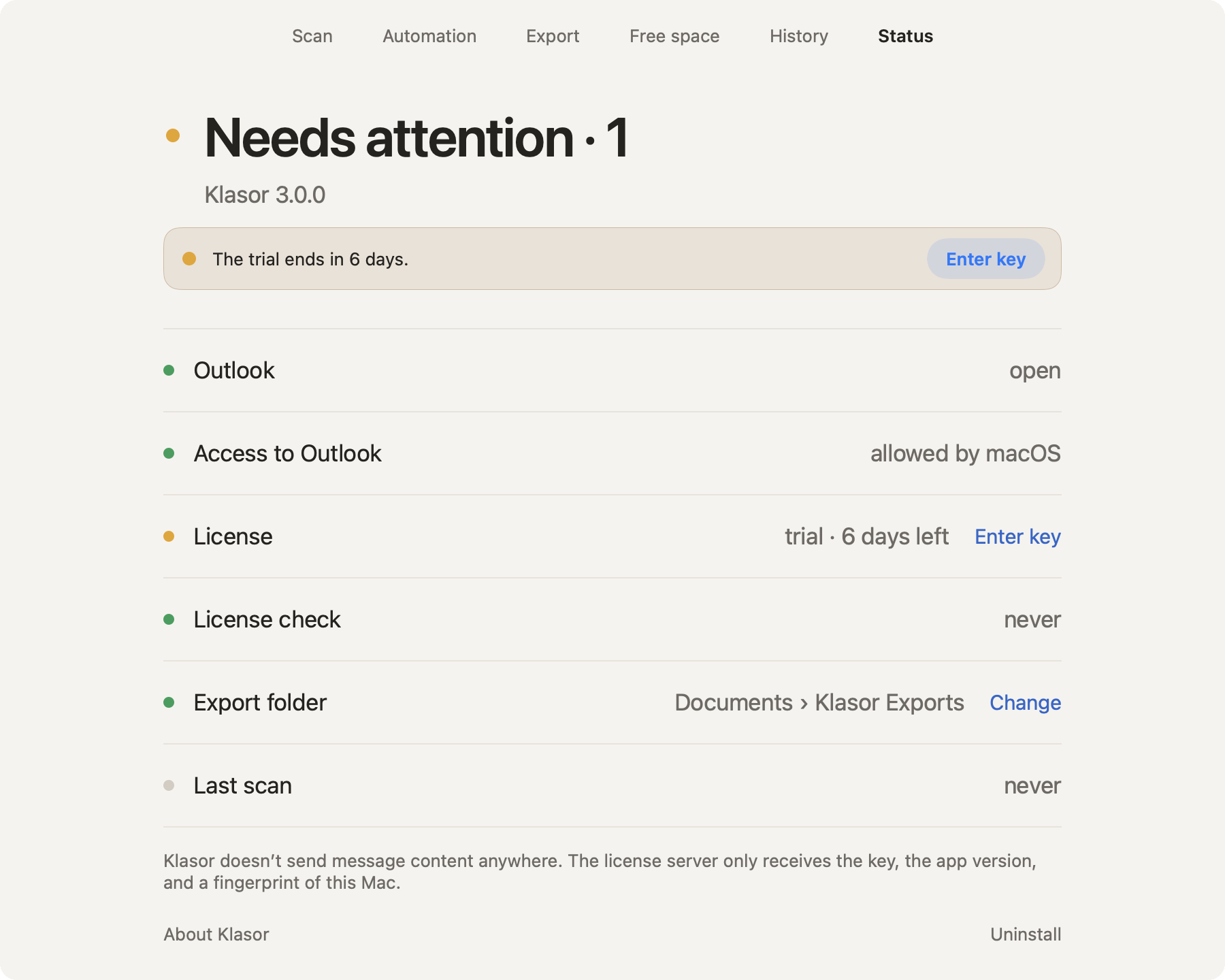
- 1
Status
“Everything is in order” when all checks pass.
- 2
License
Trial with the days left, or the license with its expiry date.
- 3
Enter key
Opens the license page, where you paste your key and press Activate.
- 4
Export folder
Where exports go by default. Change to pick another place.
- 5
About Klasor
The version, the license and the Mac ID.
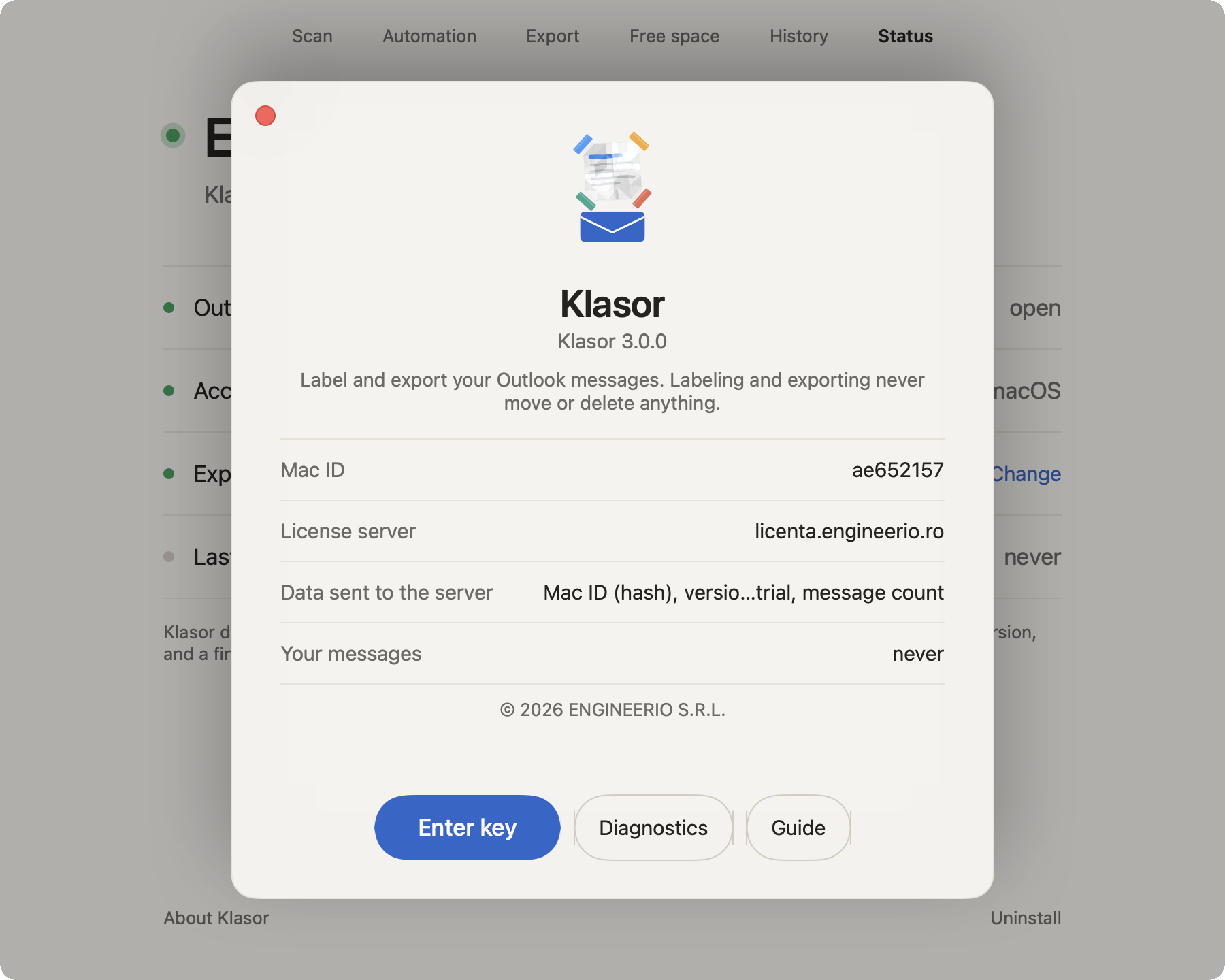
- 1
Close
The red button in the corner (or the Esc key).
- 2
Version
The installed version. If a newer one exists, Klasor tells you, and also with a macOS notification.
- 3
What the server sees
Mac ID (a code derived from your Mac, not its serial number), the license server, and the data sent: Mac ID (hash), app version, and during the trial, the number of messages processed. Never messages, subjects, or folder names.
- 4
Enter key
Activates the license on this Mac.
- 5
Diagnostics
The report for support.
- 6
Guide
Opens these guides.
How long it works offline
The app receives a signed 14-day “lease” and works offline for as long as it’s valid (plus a 7-day grace period if the server doesn’t respond). At every launch, when online (at most once an hour), the app refreshes the lease; that is also how it learns about a new version, or that a license has been revoked.
Reminders
- The trial is shown on Status with the days and messages left; a row appears when it is about to end.
- The license is announced before it expires: a macOS notification 14 days, 3 days and on the day it expires, and a row on Status with Enter key.
- A new version is announced once with a macOS notification. The first time, macOS asks you to allow notifications; you can say no and Klasor still works the same.
When the trial ends
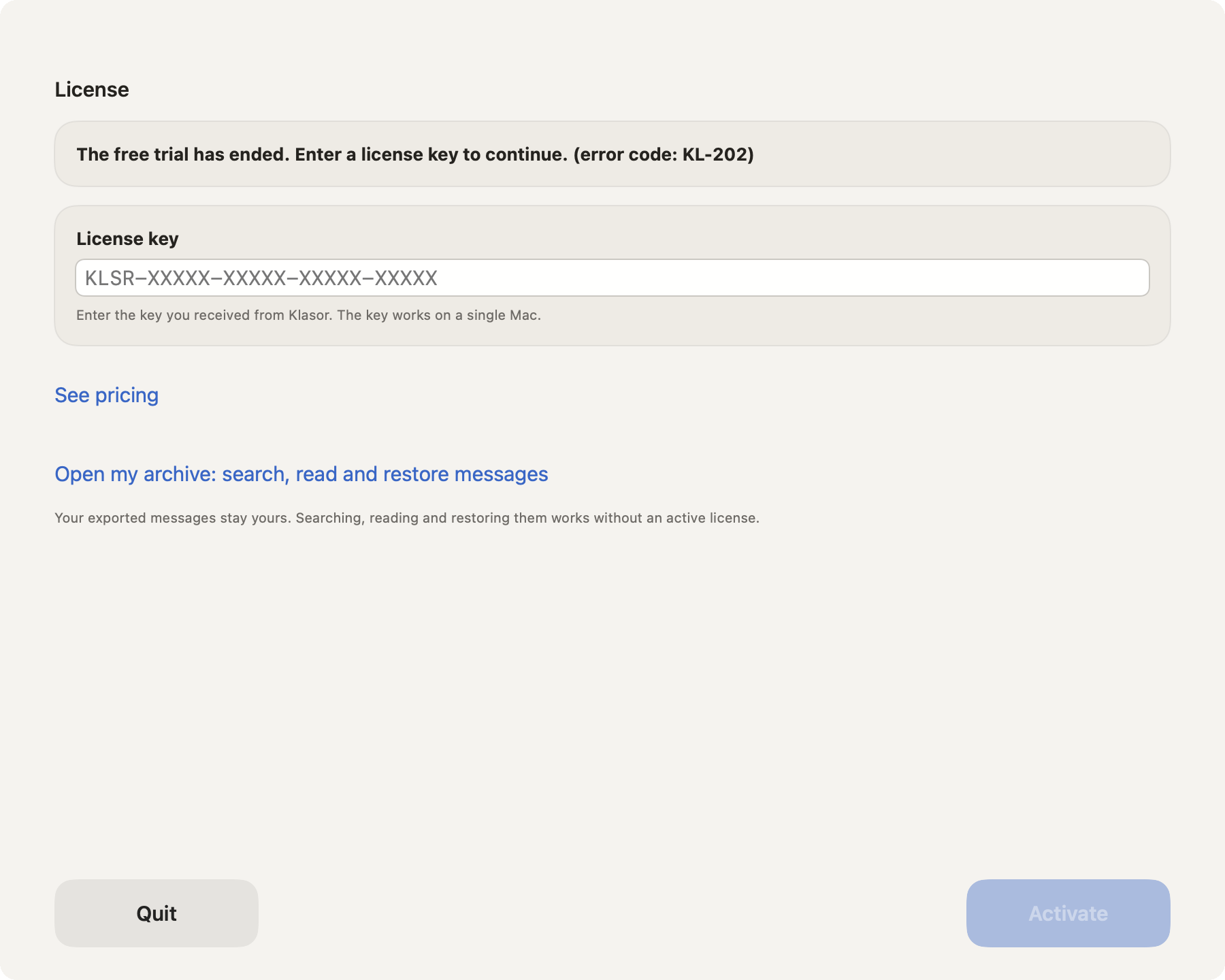
- 1
What happened
“The free trial has ended. Enter a license key to continue.”, with its error code (KL-202).
- 2
License key
Paste the key you received. It works on a single Mac.
- 3
Activate
Checks the key with the server and activates it on this Mac.
- 4
Quit
Closes the app. Your messages, labels and exports stay untouched.
Without a key, after the trial, new labeling, exporting and freeing space are paused and automatic runs stop. Your exported messages stay yours: on the license page, Open my archive lets you search, read and restore them without a license. Your messages and labels in Outlook stay untouched.
A critical update
If a version has a problem that must be fixed before you go on, Klasor shows one window with a single button, Critical update available, which opens the download. It is rare, and it is the only case in which the app asks you to update before using it.

- 1
Critical update available
Opens the page of the new version. Install it and Klasor works again, with your settings as they were.