
Double-verified .eml export
A backup of your messages that you can open years from now, without Outlook: .eml files, with a SHA-256 checksum and verification after copying.
6 min read · updated Nov 8, 2026
The export saves your messages as .eml files (an open format, readable by any email program). Exporting never deletes or moves anything in Outlook. If you later want to free space, that is a separate, optional step that works only with a verified export: Free up space.
1. Choose the folders
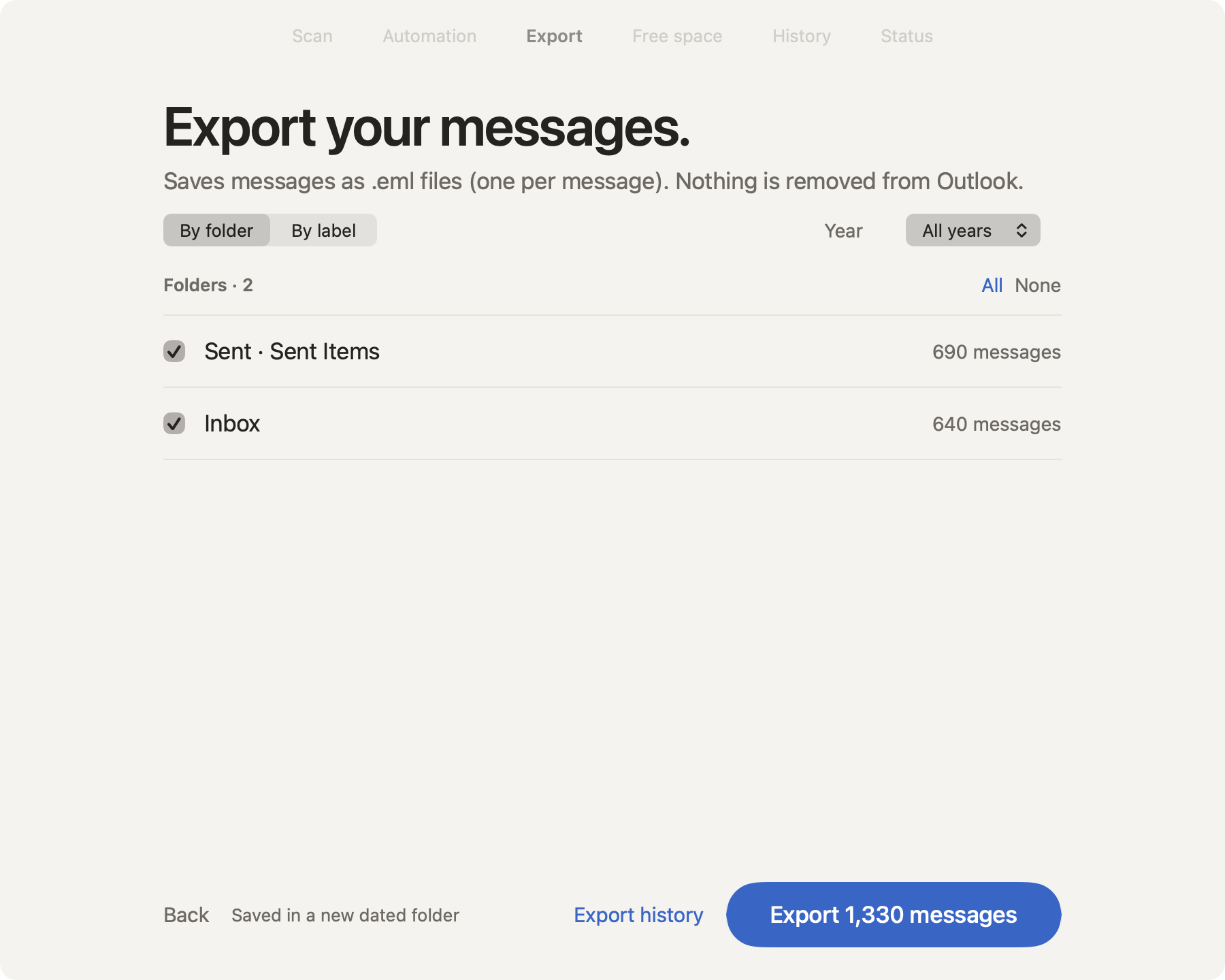
- 1
By folder or by label
By folder: you choose folders. By label: you choose labels (Outlook categories) and Klasor saves the messages of each one in a folder named after it.
- 2
Year
All years, or a single one.
- 3
All · None
Selects or clears the whole list.
- 4
The folders
Each with its number of messages. Nothing is removed from Outlook.
- 5
Export history
Opens the export history as a CSV file.
- 6
Export … messages
Goes to the destination. The button shows how many messages you chose.
2. Choose where to save
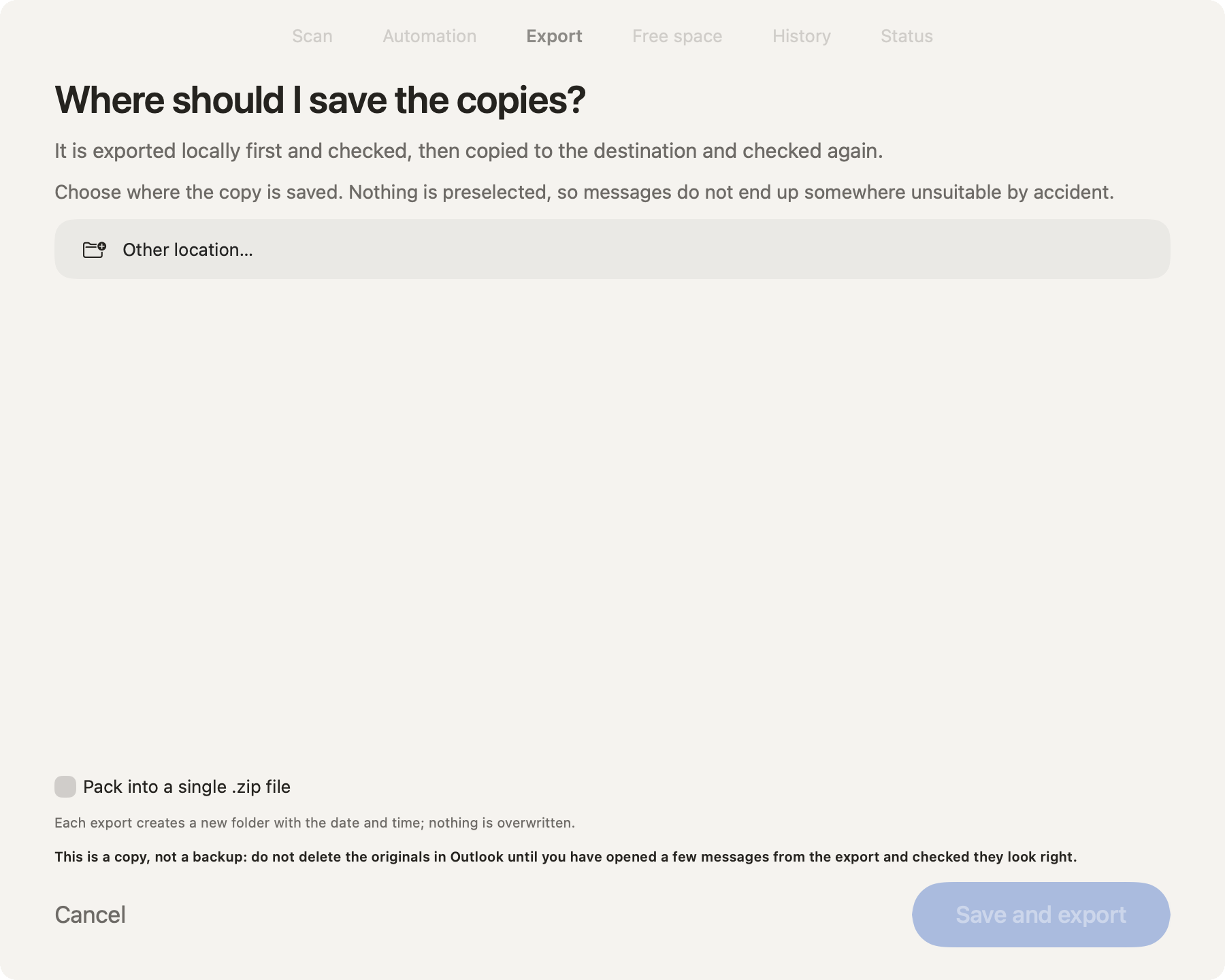
- 1
Local first
The export is made on your Mac first and checked, then copied to the destination and checked again.
- 2
The destination
Pick a place from the list or Other location…: iCloud Drive, OneDrive/SharePoint, a network volume or an external disk. Nothing is preselected, so messages never end up somewhere unsuitable by accident.
- 3
Pack into a single .zip file
A single archive instead of thousands of small files, verified too. Handy for network volumes. An export packed as .zip cannot be used to free space in Outlook: if you plan to do that afterwards, save as a folder.
- 4
A copy, not a backup
Don’t delete the originals in Outlook until you have opened a few messages from the export and checked they look right.
- 5
Save and export
Starts the export. Don’t close Outlook while it works; on large mailboxes it can take several minutes.
What happens, step by step
- Local exportOutlook exports the messages to a temporary folder on your Mac (
~/Library/Application Support/Klasor/staging.noindex/). - Check 1Each file must be non-empty, with valid message headers; its SHA-256 is computed. The number of files is compared with the expected count.
MANIFEST.csv(path, size, SHA-256, Message-ID) andREADME.txtare written, plusMANIFEST-META.csv: for each message, its original folder, labels, read status, flag and dates, which Klasor needs to restore a message and to free space. - Packing (optional)If you selected .zip, a single, verified zip is created.
- Copy to the destinationAfter checking for free space and that the destination can be written to (FAT32 disks are refused: files over 4 GB don’t fit).
- Check 2The copy at the destination is read again and compared with the manifest (or with the zip’s SHA).
- CleanupOnly now is the temporary copy deleted. If anything fails, the copy stays and the app shows you the path.
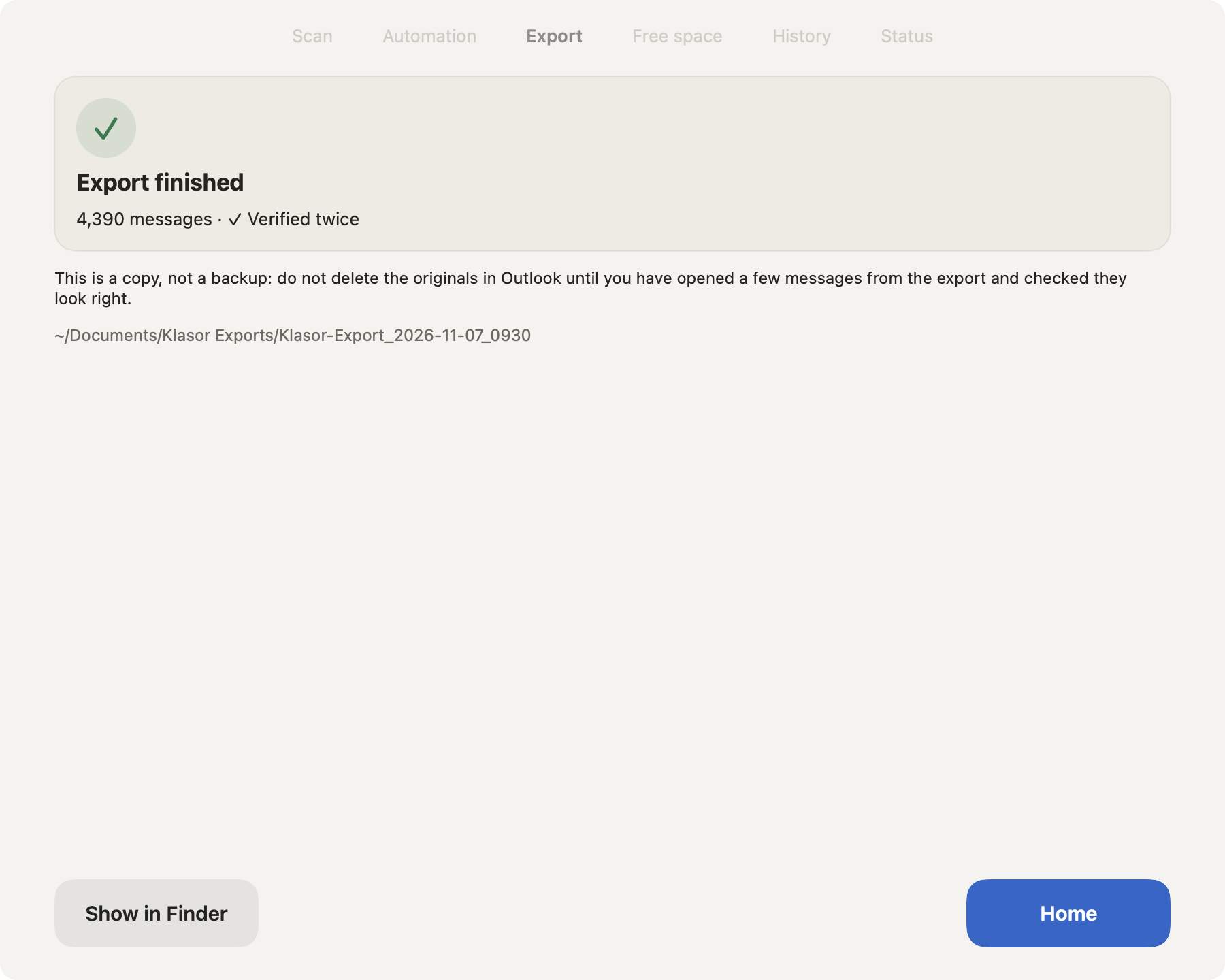
- 1
Export finished
The green check means both checks passed.
- 2
Verified twice
How many messages, and that they were checked before and after copying.
- 3
A copy, not a backup
Open a few messages before you delete anything from Outlook.
- 4
Where it is
Each export is a new folder,
Klasor-Export_YYYY-MM-DD_HHMM, and file names start with the message date. Nothing is ever overwritten. - 5
Show in Finder
Opens the export folder.
When Outlook interrupts it
Klasor normally reads each message directly, a method that has no limit on how many messages it can export. In the rare case where it has to fall back to Outlook’s own save for a message, Outlook may stop accepting saves after a few thousand until it is restarted. Klasor then stops cleanly, keeps what it saved and tells you what to do. This is not an error of yours and nothing is lost. See What the export screens mean.
After the export: search and open
- Spotlight: the exported
.emlfiles are indexed by Spotlight. Type a word from a message into your Mac’s search and the message shows up. Spotlight indexes your Mac’s disk and iCloud Drive; for an external disk or a network volume, it depends on that volume’s indexing setting. - Outlook for Mac: exported messages open directly in Outlook (right-click the file → Open With → Microsoft Outlook), with no conversion.
Export by label
At the top of the export screen, switch to By label. You see the labels from Outlook: first the ones Klasor applied, then the rest. Select one or more, and Klasor saves the messages of each one in a folder named after the label, then by account and folder. The year filter and the .zip option work too, and the same double verification runs at the end.
- A message with two selected labels appears in both folders.
- Outlook can’t search directly by category, so Klasor reads message labels folder by folder. On a mailbox with tens of thousands of messages it takes a few minutes; progress shows on screen. Nothing is deleted or changed in Outlook.
- “Deleted” and “Junk” folders are skipped.