
Free up space in Outlook, safely
An optional step, off until you turn it on: Klasor moves messages out of Outlook only when their exported copy is verified, you confirm every run, and you can bring any message back.
8 min read · updated Nov 8, 2026 · 3.0
Labeling and exporting never delete or move anything. Free space is a separate screen with four sections: Free up (moving verified messages out of Outlook), Deleted by Klasor (what was moved, with restore), Archive (search and read your exports) and Sizes (what to export first).
Before you start
- You need a Klasor export made with version 3.0 or later, saved as a folder. Older exports and .zip exports can’t be used (see below).
- It works on IMAP accounts added to classic Outlook (Gmail added as IMAP, iCloud, other IMAP). See Which accounts work, and how to add them.
- Keep a second copy of the export, ideally in another place. After the move, your export is the copy of those messages that you control; Klasor asks about it the first time.
What Klasor always keeps in Outlook
- Unread messages.
- Flagged messages.
- Messages from the last 30 days.
- Messages already moved, messages in accounts where Klasor can’t free space, and messages whose copy in the export is missing or has changed since the export.
In Advanced and Pro modes you can change the first three (see Standard, Advanced and Pro). Klasor never empties Deleted Items as a whole.
Steps
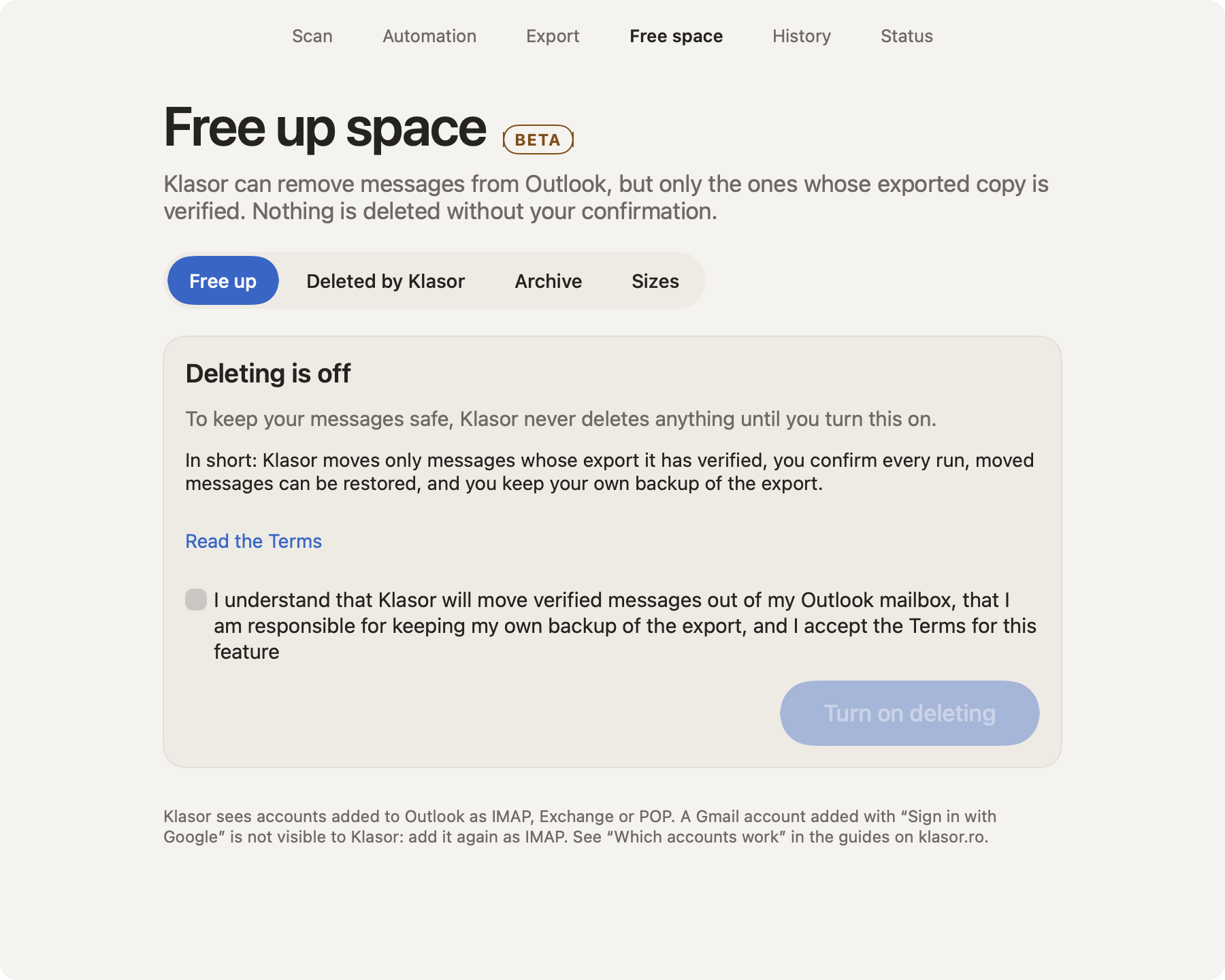
- 1
The four sections
Free up, Deleted by Klasor, Archive and Sizes.
- 2
Deleting is off
Until you turn it on, Klasor never moves a message out of Outlook.
- 3
In short
The four promises: only verified messages, you confirm every run, moved messages can be restored, you keep your own backup.
- 4
Read the Terms
Opens the Terms of use, including the section on freeing space.
- 5
Your acceptance
You confirm that Klasor will move verified messages, that the backup of the export is your responsibility, and that you accept the Terms for this feature.
- 6
Turn on deleting
Asks for one more confirmation in a pop-up. Klasor keeps a local record of the date, time and version.
- Open Free spaceChoose the Free space screen. At the top, Free up is the first of the four sections.
- Turn it on (first time only)The screen says Deleting is off. Tick “I understand that Klasor will move verified messages out of my Outlook mailbox”, press Turn on deleting and confirm in the pop-up. You can switch it off again at any time with Turn off deleting.
- Choose an exportPick one of the exports Klasor made, or Choose another export folder… (a folder that contains
MANIFEST.csv). Check that it is the export you mean: Klasor can only compare your messages with the export you choose. - ReviewPress Review. Klasor checks the export again (“Checking the export…”; a large one takes a while) and shows Review before moving. It says “Simulation: nothing has been changed yet”, how many messages can be moved and how much space they use, and, line by line, how many are kept in Outlook and why.
- MovePress Move … out of Outlook…. A pop-up repeats the number and size, says the messages go to Deleted Items and stay safe in your export, and, the first time, asks whether you have a backup. Press Move to Deleted Items.
- Type the number (large runs)For 500 messages or more you also type the number of messages to continue.
- Watch it workKlasor moves the messages in small batches. Right before each batch it checks the exported copy again, and it also reads a few messages of the batch back from Outlook and compares them with their exported copies. If a message no longer matches its copy, Klasor stops, moves nothing from that batch, and tells you which message and folder to look at: export that folder again, then try again. Stop after this batch ends the run; what is left stays in Outlook.
- DoneThe summary says how many were moved, and how many were kept because they could not be moved or no longer match the export. You can find the moved messages in Deleted by Klasor.
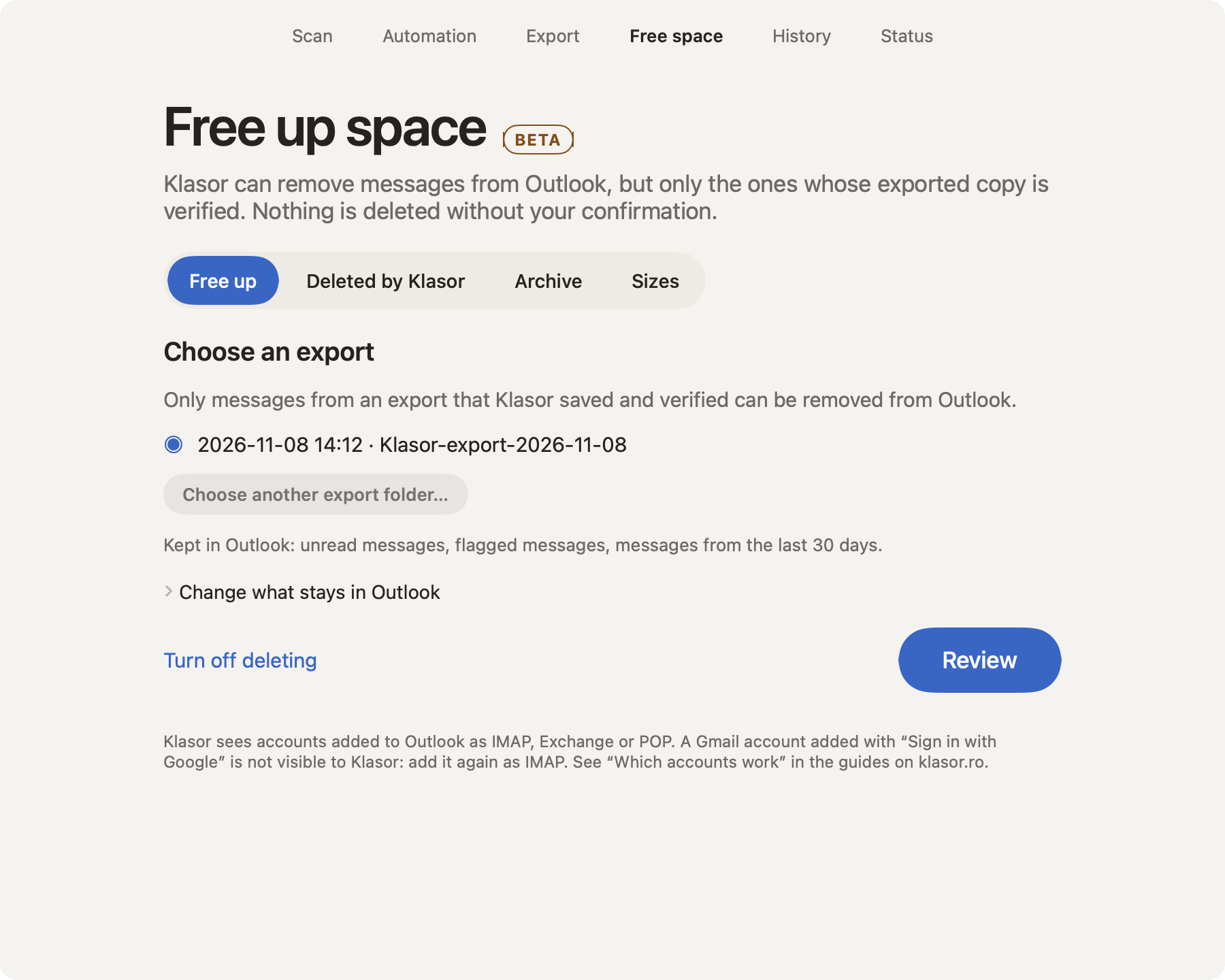
- 1
Choose an export
The export whose messages you want to move out of Outlook. Only an export Klasor saved and verified can be used.
- 2
The export
Name and date of the export. Check that it is the one you mean.
- 3
Another export folder
For an export saved somewhere else: pick the folder that contains
MANIFEST.csv. - 4
What is kept
By default unread, flagged and recent messages stay in Outlook. The line always shows the current settings.
- 5
Change what stays in Outlook
Opens the settings: unread, flagged and the number of days. Advanced and Pro show them directly.
- 6
Review
Checks the export again and shows what would be moved. Nothing is changed yet.
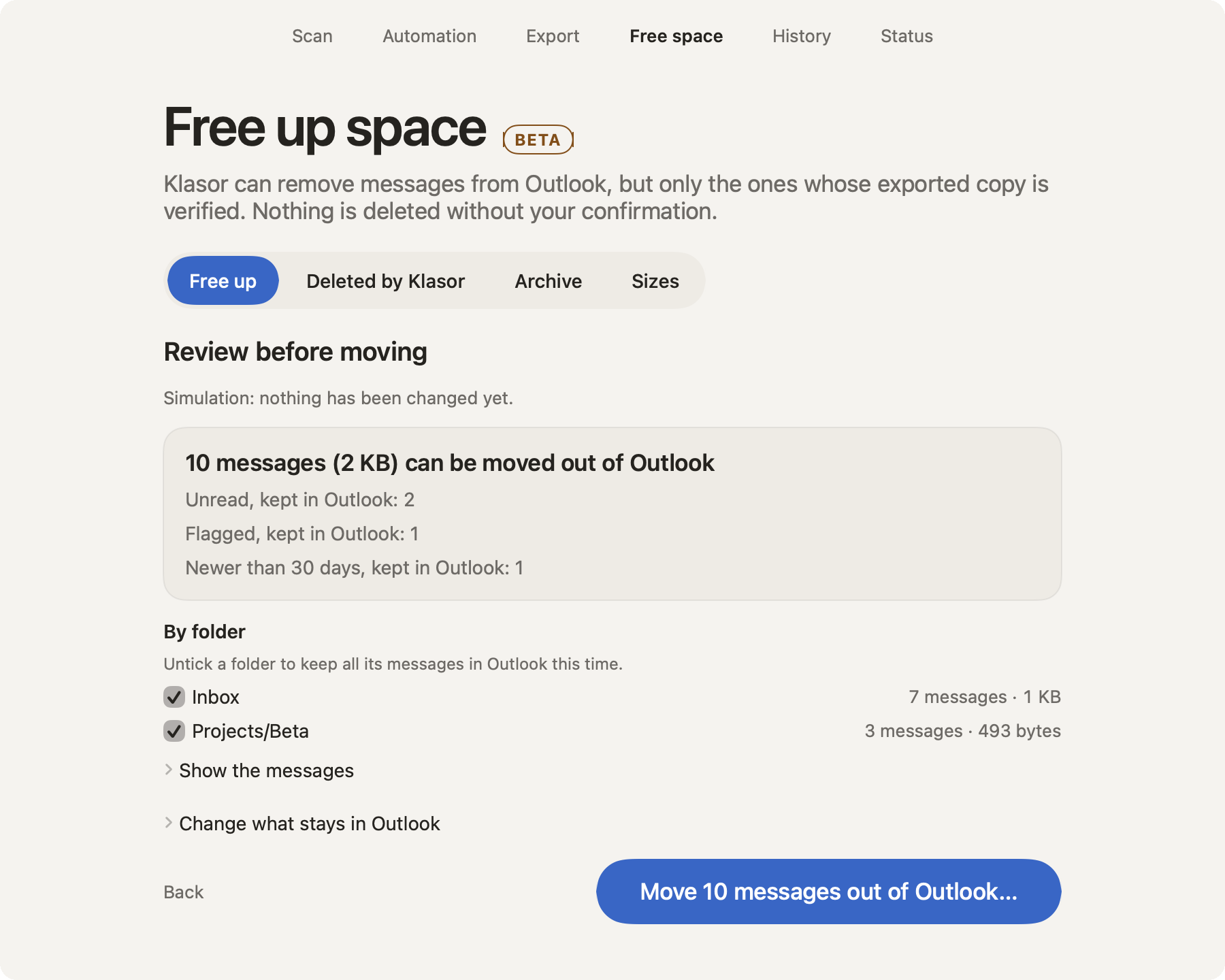
- 1
What can be moved
The number of messages and the space they use.
- 2
By folder
Which folders lose messages and how many each. Untick a folder to keep all its messages in Outlook this time.
- 3
Show the messages
The list of messages that would be moved (the first 100), so nothing is a surprise.
- 4
What is kept, and why
Line by line: unread, flagged, too recent, already moved, in an account Klasor can’t free space in, or with a missing or changed copy.
- 5
Back
Leaves without changing anything.
- 6
Move … out of Outlook…
Opens the confirmation pop-up. For 500 messages or more you also type the number.
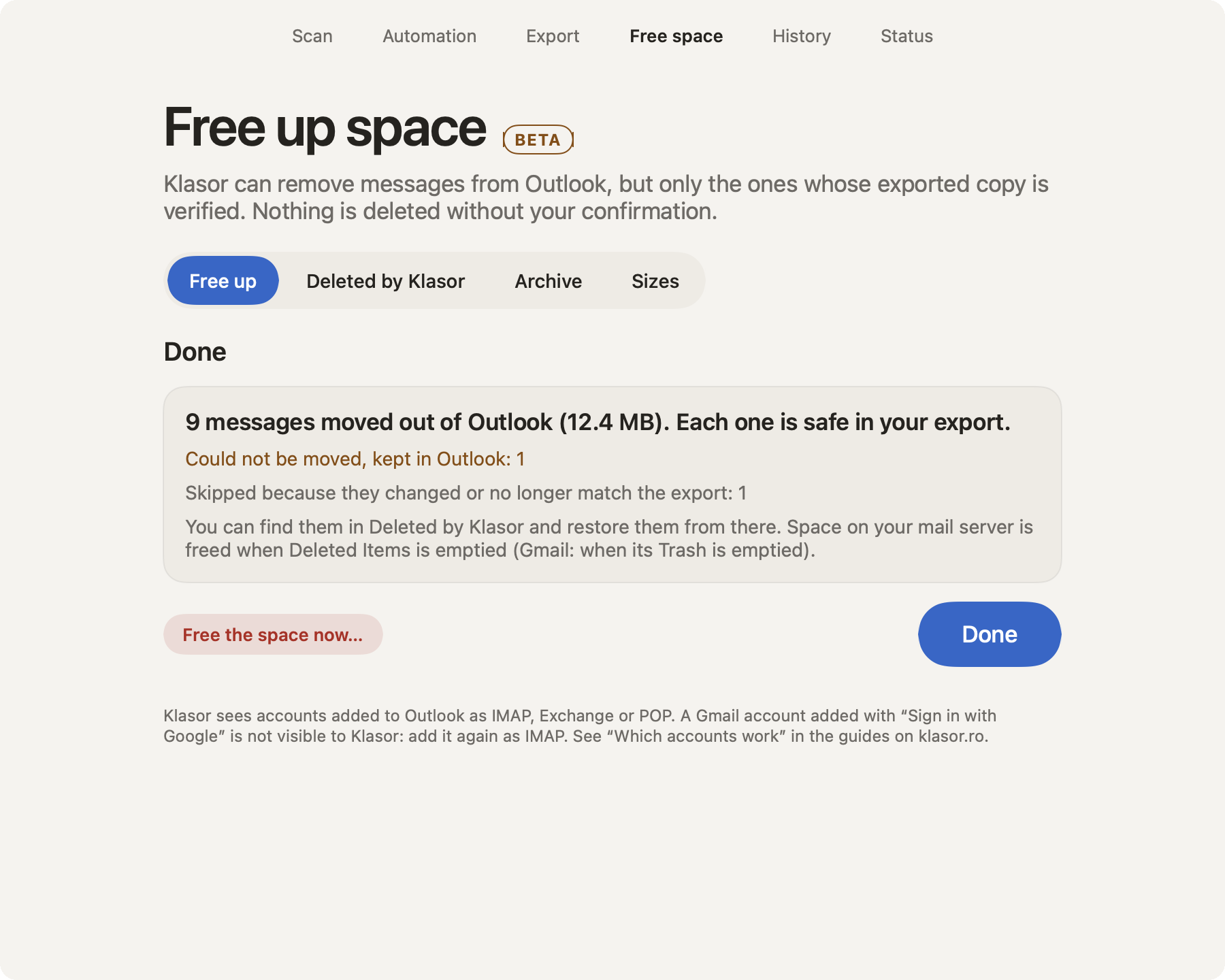
- 1
The summary
How many messages were moved and how much space they used. Each one is safe in your export.
- 2
What was not moved
Messages that could not be moved, or that changed since the export. They stay in Outlook.
- 3
Free the space now…
Separate and optional, with its own confirmation. It deletes for good only the messages Klasor just moved.
- 4
Done
Back to the start. The moved messages are in Deleted by Klasor.
Where the messages go, and when space is freed
- Messages are moved to Deleted Items in Outlook, as if you had deleted them there. You can move them back from Outlook, and Klasor can restore them (below). Nothing is deleted for good at this point.
- Space on your mail server is freed when Deleted Items is emptied: by you, by Outlook or by the server’s own rules. Klasor does not control those rules.
- Gmail: the moved messages sit in Gmail’s Trash, and Gmail keeps counting them in your storage until they are deleted from there. Gmail empties its Trash by itself after 30 days. To lower your storage now, use Free the space now.
Free the space now
When a run ends, the Done screen offers Free the space now…. It is separate and has its own confirmation: Delete N for good from Deleted Items?
- It deletes for good only the messages Klasor has just moved. Nothing else in Deleted Items is touched.
- It cannot be undone in Outlook. The verified copies stay in your export, and Klasor can still restore them from there.
- It is automatic for Gmail (added as IMAP), the one provider we tested. For another IMAP provider it stays off unless you tick “Also allow Free the space now on IMAP providers other than Gmail” in Advanced or Pro mode and confirm. On Exchange accounts it stays off.
- The button is on the Done screen of that run. If you close it, you can delete those messages from Deleted Items in Outlook yourself.
Deleted by Klasor: find and restore
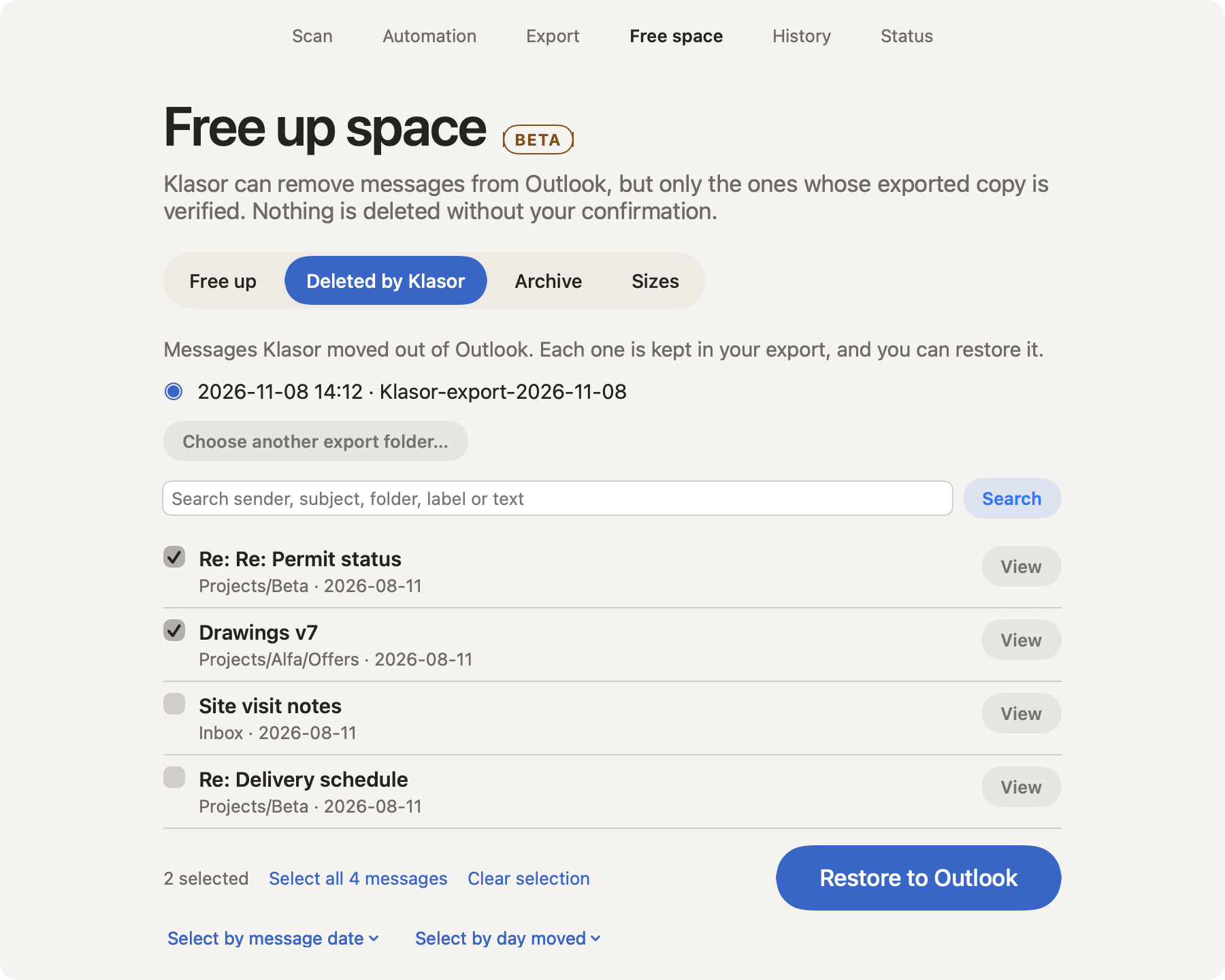
The Deleted by Klasor section lists every message Klasor moved out of Outlook from the export you chose.
- Search: type a sender, subject, folder, label or any word from the text. The search ignores accents.
- View: opens the message inside Klasor, with no network requests and no scripts. Attachments are listed, and Save… puts one where you choose; Klasor never opens an attachment itself.
- Restore to Outlook: tick one or more messages and press the button; a pop-up asks you to confirm. To tick many at once use Select all, or Select by message date or Select by day moved (grouped by month or by day).
- 1
Search
Type a sender, subject, folder, label or any word from the text, then press Search.
- 2
Tick to restore
Tick one or more messages.
- 3
View
Opens the message inside Klasor, with no network requests and no scripts.
- 4
Select all
Selects every message in the list, not only the ones on screen.
- 5
Select by message date
Ticks every message from one month, so you can restore a whole period at once.
- 6
Select by day moved
Ticks every message Klasor moved on one day, which undoes that run.
- 7
Restore to Outlook
Asks for confirmation, then puts the ticked messages back in their original folders.
A restored message goes back to its original folder: Inbox to Inbox, Sent to Sent, a custom folder to the same custom folder. Messages are never mixed between folders. What Klasor does:
- Still in Deleted Items? Klasor moves the very same message back, unchanged: same received date, same headers, same read status, flag and labels.
- No longer in Deleted Items (emptied, or removed with Free the space now)? Klasor imports the verified copy from your export. Outlook then shows the import date as the received date (the original sent date and headers are kept), and gives the message a new Message-ID. Read status, flag and labels are restored.
- The original folder was deleted? Klasor creates it again, with the same name and path, in the same account, and puts the message there. It says how many folders it re-created.
- The account is no longer in Outlook? The message is not restored, and Klasor tells you how many. Add the account again and restore again.
- A message that is already back in Outlook is not added twice. Messages are only taken out of Klasor’s list by restoring them.
Archive: search and read an export without Outlook
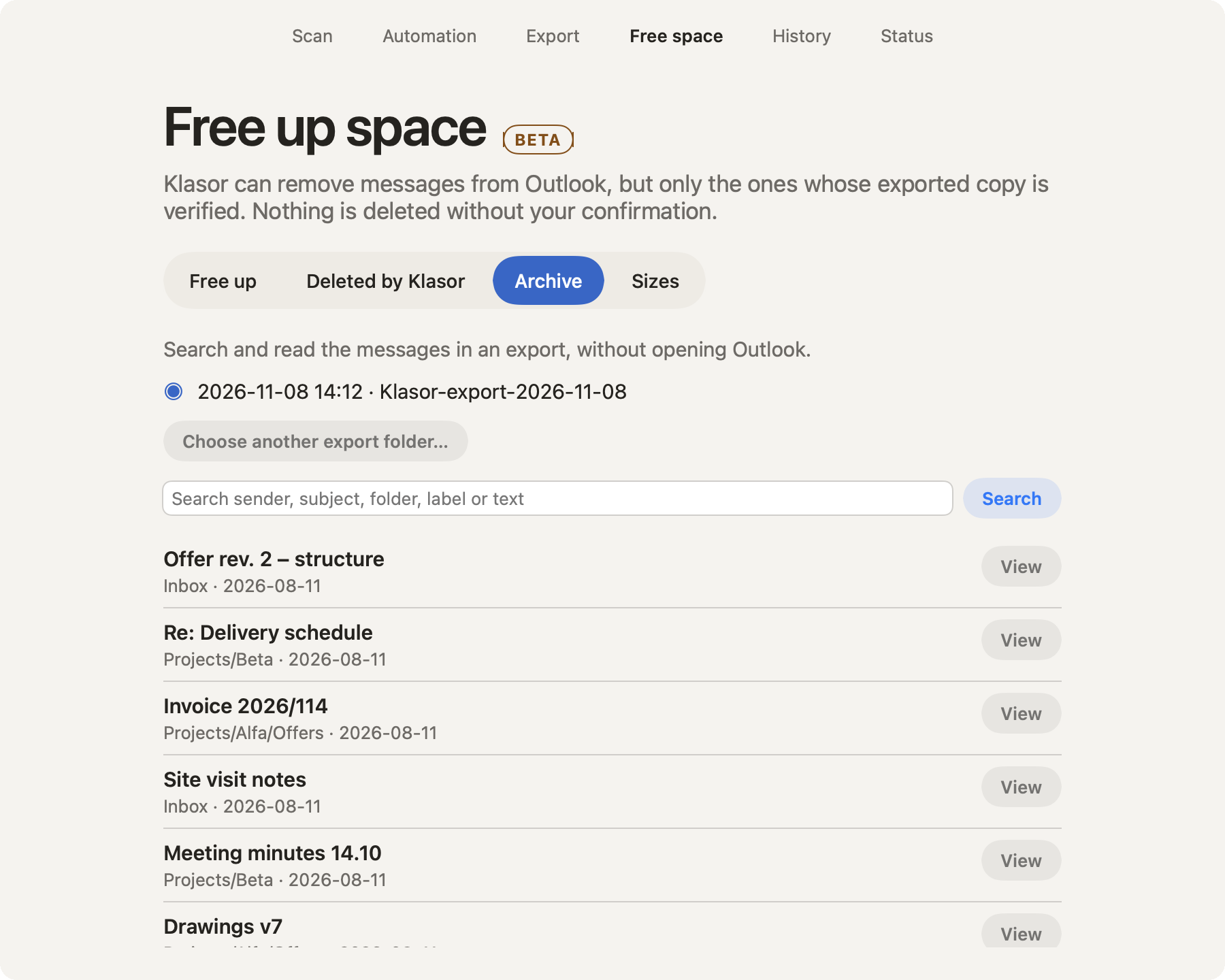
Choose an export in Archive, type in the search box and press Search. You can search by sender, subject, folder, label or text, and open any message with View. The first search prepares an index (“Preparing search…”) that is stored on your Mac; nothing leaves it. You don’t need to open Outlook.
- 1
The export
Choose which export to search and read.
- 2
Search
Searches sender, subject, folder, label and text, ignoring accents.
- 3
View
Reads the message without opening Outlook.
Sizes: what to export first
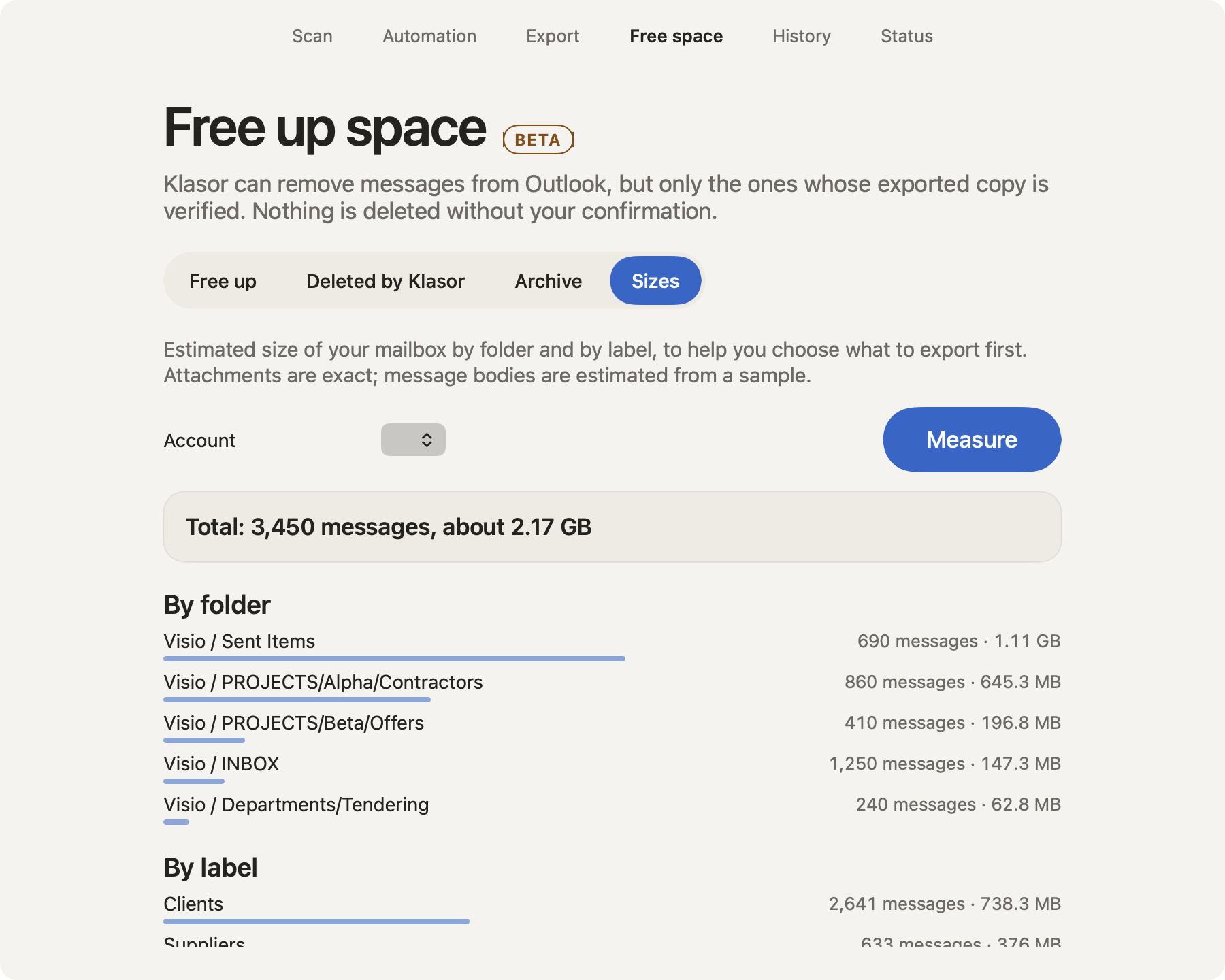
In Sizes, choose an account and press Measure. Klasor estimates the size of your mailbox by folder and by label, so you can see which folders to export first. Attachments are counted exactly; message bodies are estimated from a sample. It can take several minutes on a large mailbox (about 7 minutes for 30,000 messages in our test).
- 1
Account
The account to measure.
- 2
Measure
Starts the measurement. It can take several minutes on a large mailbox.
- 3
Total
How many messages and about how much space.
- 4
By folder
Folders sorted from the largest. The bars show each folder’s share.
- 5
By label
The same by label. Labels can overlap.
- Labels can overlap, so the totals per label can add up to more than the total.
- Gmail shows the same message under several folders (such as All Mail), so the total can count a message more than once.
Plan for a large mailbox
Freeing space starts with an export, and the export is the slow part. Measured with Outlook on a Mac: about 5 to 8 messages per second from Sent Items and about 1 message per second from received mail (messages with large attachments are slower). For tens of thousands of messages, expect hours, not minutes. There is no message-count limit, but the Mac must stay awake and on power; if the export is interrupted for any reason, Continue the export carries on from where it stopped.
- Use Sizes first to see which folders hold the most, and export those first.
- Export in rounds (by year or by folder) rather than everything at once, and keep the Mac awake and on power.
- The temporary copy is made on your Mac first, so the Mac needs free space about the size of the export.
- Review reads the whole export again to check every file (about 7 minutes for 30,000 messages).
Older exports and .zip exports
Exports made with a version older than 3.0 don’t have the details Klasor needs to find the messages in Outlook, and an export packed as a .zip can’t be used here. Klasor says so when you choose it (“This export was made by an older Klasor and cannot be used to free space. Export again to enable it.”). Export the same folders again as a folder: each export is a new folder, and nothing is overwritten.
If something doesn’t work as described, see Troubleshooting.