
Scanning your mailbox and choosing labels
Klasor reads Outlook, suggests a label for each folder, and applies it only when you confirm. A label is an Outlook category, named after the folder.
5 min read · updated Nov 8, 2026
Labeling only adds labels to the ones already there. It doesn’t move, delete, or send messages. In Outlook, a Klasor label is an ordinary category. (Moving messages out of Outlook is a separate, optional step: Free up space.)
1. Scan
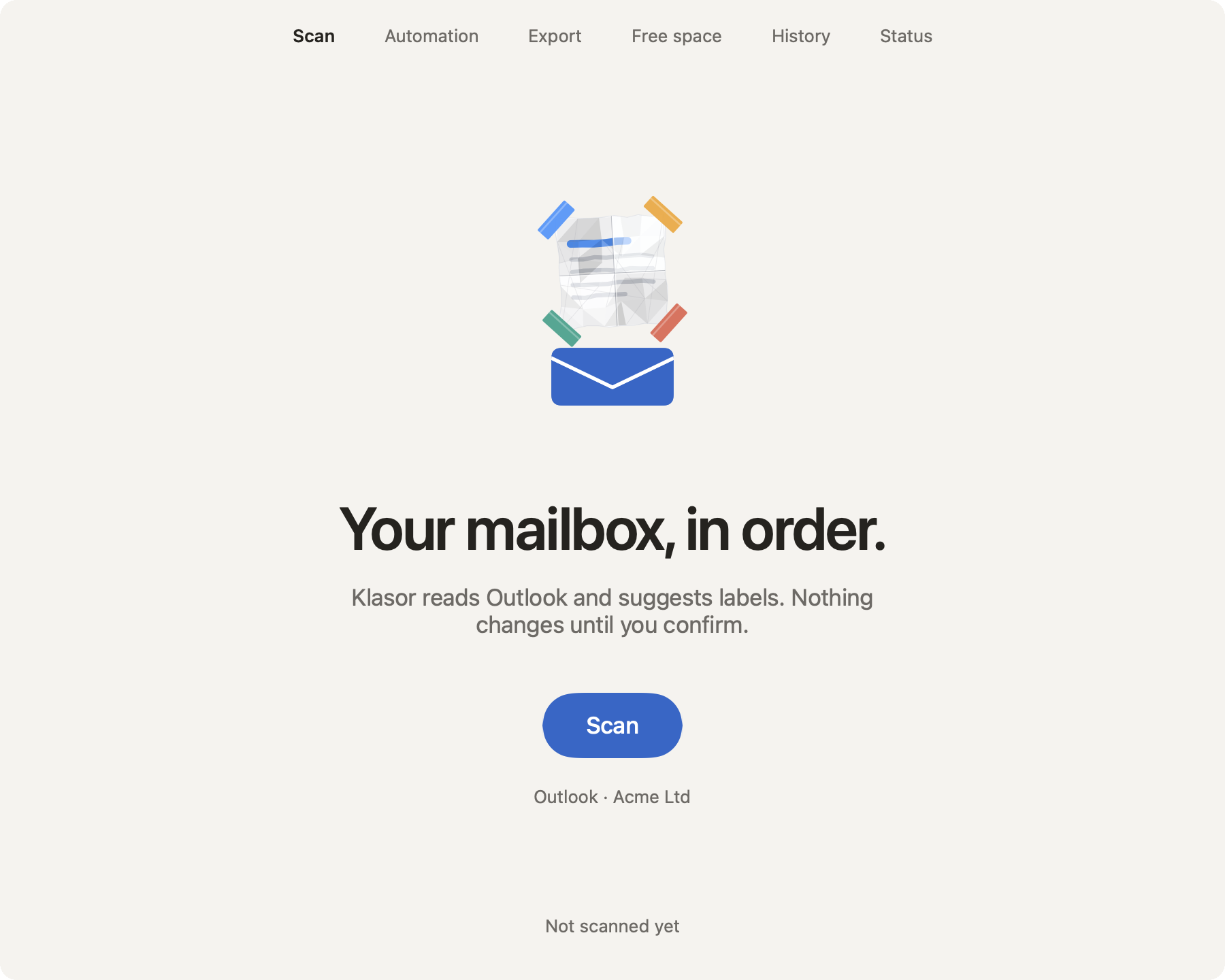
- 1
The screens
Scan, Automation, Export, Free space, History and Status are always one click away at the top.
- 2
Read-only
A scan only reads. Nothing changes in Outlook until you confirm on the next screen.
- 3
Scan
Reads your folders (it takes a minute; on a very large mailbox, several minutes). Keep Outlook open. You can stop it at any time.
- 4
Your account
The Outlook account Klasor will read.
- 5
Last scan
When you last scanned. It says “Not scanned yet” the first time.
2. Ready to apply
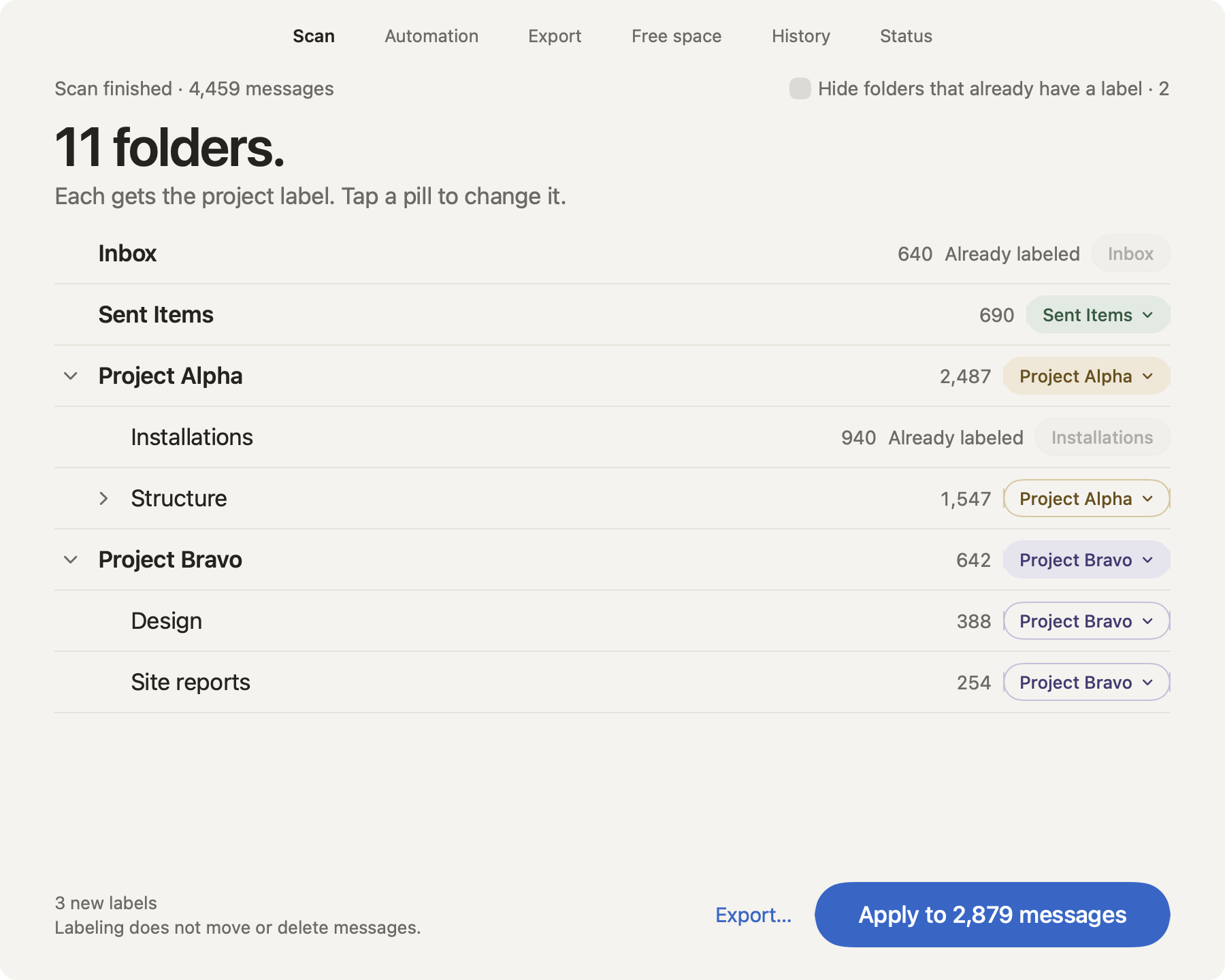
- 1
What was found
The number of messages Klasor read.
- 2
The folders
Every folder with messages, except Drafts, Junk/Spam, Virus and Deleted Items, which Klasor leaves out. Inbox comes first, then Sent, then your own folders.
- 3
Hide folders that already have a label
Hides the folders Klasor has already labeled, so only the new ones remain.
- 4
Folders and subfolders
A top-level folder gets a label named after itself, and its subfolders inherit it. One label per message, as every message sits in one folder. (Gmail can show the same message under several labels; see Which accounts work.)
- 5
The label pill
Tap it to choose another label, Add… a new one or pick No label. A subfolder that inherits the label of its parent shows an outline.
- 6
Already labeled
Folders Klasor has labeled before. They stay as they are.
- 7
A promise
“Labeling does not move or delete messages.” The count tells you how many new labels will appear in Outlook.
- 8
Export…
Goes straight to the export, for the same folders.
- 9
Apply to … messages
Labels the messages, with progress on screen. Klasor asks you to confirm first. Don’t close Outlook while it works.
Changing or removing a label
- Change it: tap the pill of the folder and choose another label, or type a new one with Add…. If you change the label of a folder that was already labeled, the old label stays on the old messages: Klasor doesn’t delete categories from Outlook.
- Stop labeling a folder’s new messages: on Automation, switch the folder off, or press Remove from automation. Your messages and labels stay untouched.
- No label in the pill menu keeps that folder unlabeled. If automation is off, its messages stay unlabeled until you label them.
Want to remove the label from messages that are already labeled? You do it in Outlook, in a few steps: Remove a label from messages, in Outlook.
Good to know
- With Exchange accounts, labels sync; with IMAP accounts they may stay local, in Outlook on that Mac only. Which account types Klasor can see: Which accounts work.
- On very large mailboxes, the first labeling takes several minutes. Don’t close Outlook while Klasor is working.
- Each Mac has its own configuration; it isn’t shared between users.
- A scan does not see labels you put on messages by hand in Outlook, only the ones Klasor applied.