
Complete uninstall
How to remove Klasor from one place, without leaving scheduled tasks or configuration files behind.
2 min read · updated Nov 8, 2026
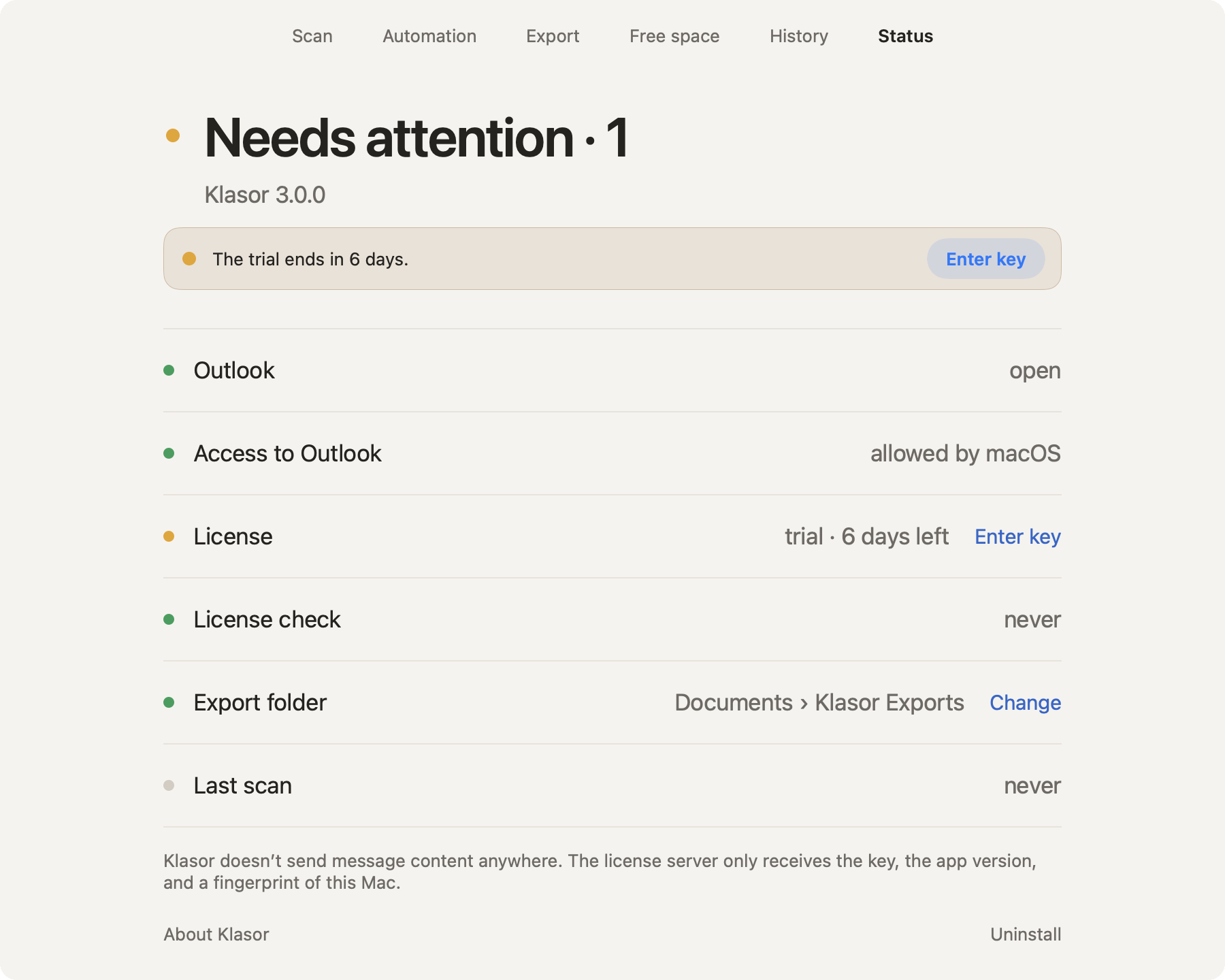
- Choose UninstallOn Status, bottom right, press Uninstall. The app shows you, in three short pages, what is deleted, what stays and what to do about the license.
- Confirm on the last pageThe schedule is turned off, the settings, history and temporary files are deleted, and
Klasor.appis moved to the Trash. The app then quits by itself.
- 1
About Klasor
The version, the license and the diagnostics.
- 2
Uninstall
Does everything above and asks for confirmation. It runs only when nothing else is in progress.
What stays
- Your messages and labels in Outlook stay untouched. If you want, you can delete the categories from Outlook (here is how).
- Exports stay where you saved them.
- The license file and the trial counter stay in
~/Library/Application Support/Klasor/(license.jsonandtrial-ledger.txt), so the trial doesn’t restart on a reinstall. On the last uninstall page you can tick “Also delete the license and the trial counter from this Mac”; an ended trial stays ended anyway, because the server remembers it. If you have an active license and you’re moving it to another Mac, deactivate it first on the license page.
If the app no longer starts
Drag Klasor.app from Applications to the Trash, then delete the folder ~/Library/Application Support/Klasor/ and the file ~/Library/LaunchAgents/ro.engineerio.klasor.plist by hand.